
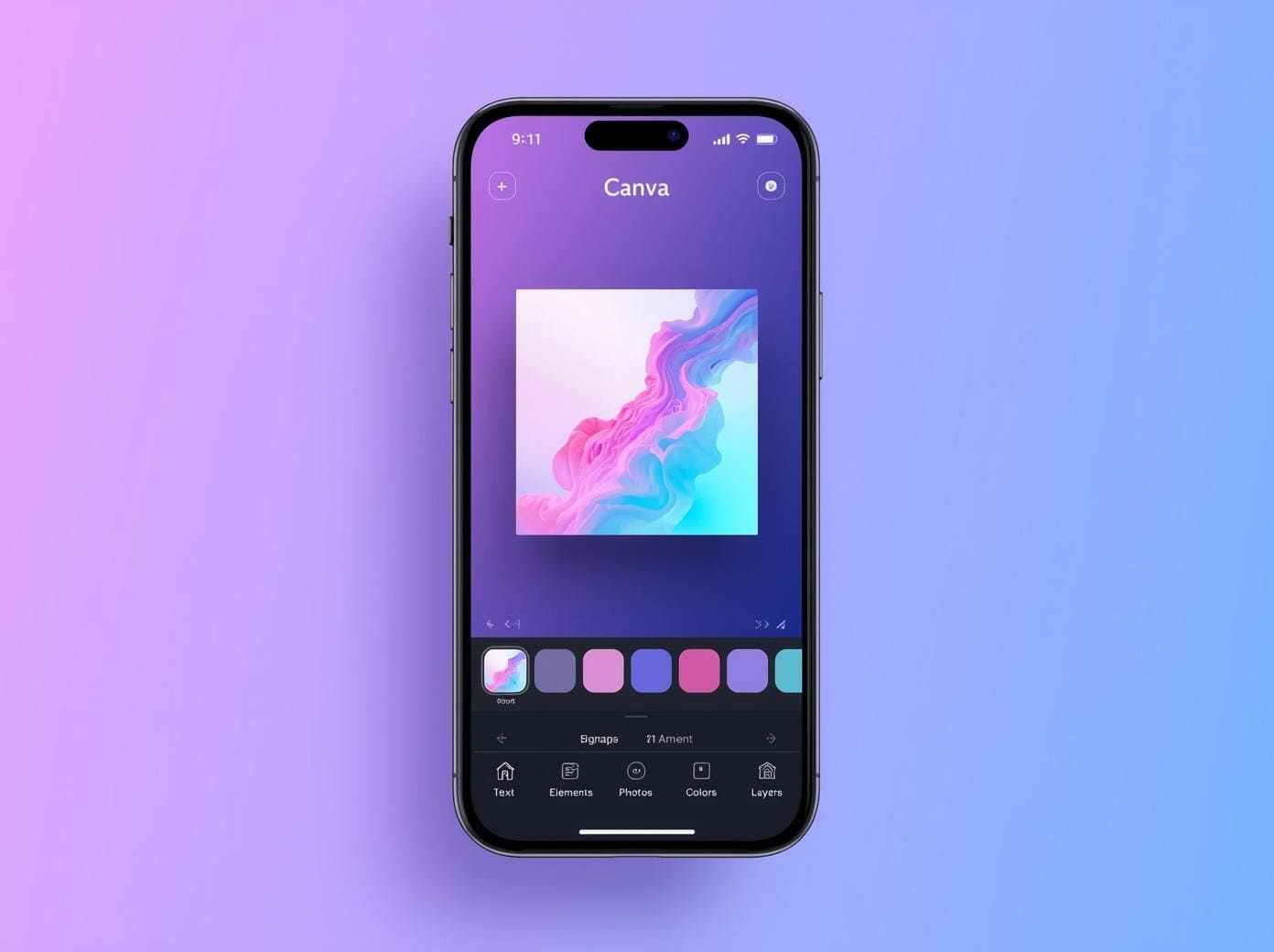
Introduction: how to create a digital product with Canva step by step
Let me be honest with you for a second.
When I first heard about creating digital products to sell online, I thought it was one of those things reserved for graphic designers with fancy software and years of experience. I assumed you needed to know Photoshop, or Illustrator, or at minimum .. have some kind of creative gift I clearly didn’t have.
Then I discovered Canva.
And honestly? It changed everything I thought I knew about starting an online business.
Here’s the truth nobody tells you upfront: you can create a completely professional, sellable digital product inside Canva in a single afternoon. A planner, an eBook, a workbook, a social media template pack .. all of it. From scratch. Using the free version. With zero prior design experience.
In this guide, I’m going to walk you through exactly how to create a digital product with Canva step by step .. the way I wish someone had walked me through it when I was starting out. No jargon. No fluff. Just the real process, in order, so you can finish reading this and actually do the thing.
And if you’re still figuring out what kind of business model makes the most sense for you before diving into product creation, start with this: How to Sell Digital Products Online for Beginners. It gives you the full picture of how the digital product world works .. and reading it first will make everything in this guide click faster.
Alright, let’s get into it.
Why Canva Is the Right Tool (Especially If You’re Just Starting Out)
Before we get into the steps, I want to quickly explain why Canva specifically .. because there are dozens of design tools out there and it’s easy to get overwhelmed before you even begin.
Canva is built for non-designers. That’s not a knock on it .. that’s exactly what makes it so powerful for first-time digital product creators. The whole interface is drag-and-drop. There are thousands of pre-built templates across every product category you could imagine. And the free plan? Genuinely generous. You can create and sell digital products without ever paying a cent to Canva.
Here’s what makes it particularly great for this specific goal:
It handles multiple product formats under one roof. EBooks, printable planners, social media templates, worksheets, checklists, pitch decks .. all of it lives in Canva. You don’t need five different tools for five different products.
It has a “Template link” feature that lets you sell editable Canva files to buyers without them needing to download anything complicated. This is the backbone of how Canva templates are sold on Etsy and Gumroad .. and it’s a real game-changer for passive income.
And it exports in every format you’d need .. PDF for printables, PNG for graphics, MP4 for animated content. Everything your buyer needs is a few clicks away.
Now let’s actually build something.
Step 1: Get Clear on What You’re Creating (and Who It’s For)
This is where most people stumble .. and it’s not because they can’t think of ideas. It’s usually because they have too many and don’t know how to choose.
Here’s the filter I’d encourage you to use: What problem does this product solve, and for whom?
The more specific your answer, the better your product will perform. “A planner” is forgettable. “A weekly content planner for Instagram coaches who hate spreadsheets” is something a specific person reads and immediately thinks .. that’s for me.
Some of the best digital products to make and sell with Canva right now include:
Printable planners and trackers .. Daily planners, meal prep planners, budget trackers, habit trackers, goal-setting sheets. These are evergreen sellers because people always need better systems for organizing their lives. There’s something about a well-designed printable that a digital spreadsheet just can’t replace for many people.
eBooks and guides : A 20–40 page PDF packed with useful information on a topic your audience cares about. Canva’s presentation layouts make these look genuinely polished without much effort on your part. The key is picking a topic narrow enough to go deep on.
Canva templates : Social media post templates, story templates, newsletter headers, media kits. You design them once, share the template link, and the buyer gets their own editable copy. This is hands-down one of the most scalable Canva products you can build because delivery is completely automated.
Workbooks and worksheets : These pair beautifully with online courses, coaching programs, or as standalone products. If you teach anything .. business, wellness, creativity, parenting .. a workbook reinforces your expertise and gives clients something tangible to work through.
Lead magnet templates : Small businesses and coaches constantly need beautifully designed freebies to grow their email lists. If you can design a clean, customizable opt-in PDF template, there’s a strong and consistent market for it.
Take some time with this decision. Don’t rush past Step 1 just to “get into Canva.” The idea and the positioning are the most important choices you’ll make .. everything downstream depends on them.
For even more inspiration on what’s selling right now, the Best Digital Products to Sell on Etsy in 2026 shows you exactly what buyers are actively searching for this year.
Step 2: Validate Before You Design (Seriously, Don’t Skip This)
I’m going to say something that might feel counterintuitive: don’t open Canva yet.
Before you spend an afternoon building something beautiful, spend 20 minutes confirming that people actually want to buy it. This single habit separates creators who make consistent sales from those who end up with a portfolio of unsold products and a quiet sense of frustration.
Here’s a quick, completely free way to validate any digital product idea:
Search Etsy first. Type your product idea into Etsy’s search bar and look at the results. If listings show up with 200, 500, even 1,000+ reviews .. that’s demand proof. The market is there. Your job is just to offer something better, more specific, or more visually appealing than what already exists.
Use Google’s autocomplete. Start typing your product idea into Google and watch what it suggests before you even finish. Those suggestions come from real search behavior .. Google is literally showing you what people are already looking for.
Browse Pinterest. Search for your product concept and see how many repins top posts have, which boards are saving similar content, and what the most popular versions look like. Pinterest is one of the biggest discovery platforms for digital products, especially printables and templates.
Check Google Trends. Is interest in your topic growing, stable, or dropping? Growing or stable means evergreen opportunity. A sharp decline might be a signal to pick a different angle.
If you find evidence that people are already buying something similar to your idea .. you’ve found a winner. You don’t need to invent something new. You just need to build the best version of something the market is already buying.
Step 3: Open Canva and Set Up Your Design Correctly
Now we’re ready. Go to canva.com, create your free account if you don’t already have one, and click “Create a design” in the top right corner.
You can either search for a specific template type directly (which I recommend) or enter custom dimensions. For most digital products, searching by template type gives you a better starting point and saves time.
Here are the dimensions to use for the most common product types:
| Product Type | Best Dimensions |
| Printable planner or workbook | 8.5 x 11 inches (US Letter) |
| eBook or guide | 8.5 x 11 inches or A4 |
| Instagram post template | 1080 x 1080 px |
| Pinterest graphic | 1000 x 1500 px |
| Presentation or slide deck | 1920 x 1080 px |
| Instagram Story or Reel cover | 1080 x 1920 px |
One thing worth remembering for printables: when you export later, select “PDF Print” instead of standard PDF. This downloads at 300 DPI .. the resolution required for crisp, professional-looking print quality. Anything lower will look blurry when someone prints it at home, and that leads to disappointed customers and refund requests.
Step 4: Choose a Template and Make It Genuinely Yours
Here’s something I want to push back on before you feel guilty about it: using a Canva template doesn’t make your product generic or unoriginal. It gives you a professional structure to build on so you can focus your energy on making the product useful and specific, rather than spending hours fussing over whether a layout looks right.
In the left sidebar, click “Templates” and search for something close to your product type. Scroll through the options and pick one that roughly matches the aesthetic you’re going for .. minimal and clean, warm and illustrated, professional and corporate .. whatever fits the buyers you’re designing for.
Once you’ve selected it, here’s how to make it authentically yours:
Start with your color palette. Pick 2–3 colors and use them consistently across every page of your product. A strong primary color, a lighter secondary, and a clean neutral background (white, off-white, or light gray) almost always looks polished and professional. Canva lets you save custom hex codes, which becomes really useful once you start building a brand identity across multiple products.
Choose two fonts and commit. One for headings .. something with a bit of character, slightly bold or stylized .. and one for body text .. clean, easy to read at small sizes. Canva suggests font pairs when you select any font (look for the “pair with” option), and their suggestions are usually solid. Pick a pair you like and use it everywhere. Consistency is what separates amateur designs from professional ones.
Swap imagery for something relevant. If the template uses stock photos or generic illustrations, replace them with visuals that actually relate to your niche. Search for specific icons, shapes, or illustrations in the Elements panel. A wellness planner should feel calm and grounding. A business template should feel sharp and focused. The imagery sets the emotional tone before anyone reads a single word.
Fill in all your actual content. Replace every piece of placeholder text with real, useful information. Go through each page carefully .. it’s surprisingly easy to miss a text box hidden behind another element.
One design principle that’s worth internalizing: white space is not wasted space. New creators tend to fill every inch of their design with something .. extra icons, more text, additional decorations. Professional designers do the opposite. They let content breathe, which makes everything easier to read and more enjoyable to look at. When in doubt, take something out rather than adding more.
Step 5: Build Out Your Full Product Page by Page
If you’re creating a multi-page product .. a planner, eBook, workbook, or template pack .. this is where you build the full thing out. It sounds like the most time-consuming part, but once you’ve established your design system (colors, fonts, layout style), each additional page goes much faster than you’d expect.
In Canva, pages appear as thumbnails at the bottom of the screen. To add a new page, click the “+” button. To duplicate an existing page .. which is almost always faster than starting fresh, hover over the page thumbnail and click the three-dot menu, then select “Duplicate page.”
For a planner, workbook, or eBook, a structure that works consistently well looks like this:
Page 1 : Cover. This is your most important page. It’s what buyers see in your listing thumbnail, and it’s what sets the tone for everything that follows. Make it clean, make it clear, and make sure the product title communicates exactly what’s inside. Your brand name should appear here too.
Page 2 : Welcome or intro. A short note explaining how to use the product, or just a warm welcome message. This adds personality and makes the product feel like it came from a real person rather than a template factory.
Pages 3 onward : Core content. The actual meat of the product: planner grids, journal prompts, workbook exercises, chapter content, whatever your specific product contains.
Final page : Close and CTA. Your website URL, social media handles, and a gentle nudge to explore your other products. This turns every download into a mini marketing touchpoint.
Canva’s grid view (icon in the top right of the canvas) lets you see all your pages simultaneously, making it easy to spot inconsistencies or reorganize the flow.
And don’t overthink page count. A focused 12-page workbook that genuinely helps someone accomplish something specific is far more valuable .. and more reviewable .. than a padded 50-page document that looks impressive but delivers little.
Step 6: Export Your Product in the Right Format
You’ve finished designing. Now let’s get the file out of Canva and into the hands of your buyers.
Click “Share” in the top right corner, then “Download.” Choose your format based on what you’re selling:
- PDF Print → Any product buyers will print at home: planners, workbooks, checklists, printable art
- PDF Standard → Products meant to be read on-screen: eBooks, digital-only guides
- PNG → Individual graphics, social media templates, standalone design files
- MP4 → Any animated content or motion graphics
For anything multi-page, always make sure “All pages” is checked before downloading. It’s a small thing but easy to miss, and downloading only the first page after hours of work is the kind of thing that haunts you.
If you’re selling Canva templates: Don’t download anything. Instead, go to Share → “Template link.” Canva generates a unique URL. When a buyer clicks it, they get their own editable copy of your design directly in their Canva account .. fonts, colors, layout and all. They can customize everything without touching your original. This is exactly how Canva template shops on Etsy work, and it eliminates any file compatibility issues entirely.
Step 7: Package and Present Your Product Like a Pro
Here’s where a lot of creators leave money on the table. They build a genuinely great product, then list it with a vague title, a poorly designed thumbnail, and no thought given to the buyer’s experience after purchase.
Your packaging and presentation directly affect your conversion rate. A great product presented carelessly will get scrolled past. A good product presented with intention will convert. Here’s the final result:
Name your files like a professional. “Weekly-Planner-Blogora-Studio.pdf” communicates care and brand identity. “canva_download_FINAL_v3.pdf” says you weren’t thinking about the buyer. Your file name is the first thing someone sees after purchasing .. make it feel considered.
Create mockup images before you list. Before publishing your product anywhere, build mockup images showing it displayed in a real-world context: open on a desk next to a coffee cup, displayed on a tablet screen, printed and placed in a planner setup. You can create these directly inside Canva using device frame mockup templates. These preview images are what buyers see on your sales page, and they have an enormous impact on click-through rates. A clean, realistic mockup can be the single biggest conversion lever you have early on.
Write a short instructions document. Include a brief PDF or text note explaining how to access and use the product. For Canva template buyers especially .. explain that they’ll need a (free) Canva account and walk them through how to use the template link. This small extra step dramatically reduces buyer confusion and cuts down on the kind of support messages that eat your time.
Bundle your files cleanly. If your product includes multiple files (a planner PDF, a Canva template link document, an instruction page), zip them into one folder. One clean, organized download creates a much better buyer experience than three loose files flying in at once.
Once your product is packaged and ready, platforms like Gumroad let you upload your file, set your price, and have a live product page within ten minutes. No monthly subscription, no technical complexity .. just a straightforward path from finished product to first sale.
And if you want to go deeper on the marketing side of things .. how to actually drive traffic to your products, build an audience that buys, and turn a single Canva file into a growing income stream .. the Digital Marketing Guide connects all those dots in one place.
A Quick Word on Pricing Your First Product
This comes up constantly, so let me address it before you list anything.
New creators almost always underprice their first product because charging money for something you made in an afternoon feels strange. But here’s a reframe that helps: buyers aren’t paying for the hours it took you to create it. They’re paying for what it does for them .. the time it saves, the problem it solves, the outcome it gets them closer to.
A practical starting point: single printables and simple templates typically sell for $3–$12. Template packs and multi-page workbooks usually land in the $9–$35 range. eBooks and in-depth guides can comfortably sit at $17–$97 depending on depth and niche. Start conservatively to build reviews, then raise prices as social proof accumulates and you see what buyers are responding to.
Conclusion: The Only Thing Left Is to Start
If this guide did one thing, I hope it made the whole process feel less intimidating and more doable.
Because here’s the reality: creating and selling digital products in 2026 is genuinely accessible. The tools are beginner-friendly, the market is enormous, and the barrier to entry is lower than it’s ever been. You don’t need a design background. You don’t need a big following. You don’t need a complicated tech setup. You need a good idea, a few focused hours in Canva, and the willingness to publish before you feel completely ready.
You now have the full step-by-step framework: validate your idea, set up Canva correctly, design your product with intention, export it properly, package it like a professional, and get it live.
The only missing ingredient is action.
Pick one idea this week. Spend one afternoon in Canva. Have something listed before the weekend. Your first product won’t be perfect .. and it doesn’t need to be. It needs to be finished and in front of buyers so you can learn what works and improve from there.
Ready to take the next step? Head back to How to Sell Digital Products Online for Beginners to set up your complete sales system .. where to sell, how to price, and how to get your first customer through the door.
And if you want structured support as you build your digital product business from scratch, the Blogora Academy has free training designed to take you from zero to your first sale, step by step.
You’ve got this. Now go build something.
Frequently Asked Questions
Can I really create and sell digital products using Canva’s free plan?
Yes, the free plan is genuinely sufficient to start. You get access to thousands of templates, elements, and fonts at no cost. The one thing to watch for: if you use any Canva Pro elements (they show a small crown icon) in a product you’re selling, you need an active Pro subscription at the time of sale. Stick entirely to free elements and you’re completely in the clear.
Am I the ownAm I the owner of my Canva designs?er of my Canva designs?
You own the creative work you build .. the layouts, written content, color choices, and overall design decisions are yours. However, you don’t own Canva’s underlying stock elements or base templates. Canva’s Content License allows you to sell products that include their elements, but you can’t simply resell an unmodified Canva template as if it’s your own original creation. Your design needs to involve real creative input. Always check Canva’s current licensing page since terms do update occasionally.
What’s the difference between selling a PDF and selling a Canva template link?
A PDF is a finished, non-editable file .. buyers download it, print it, or read it as-is. A Canva template link gives buyers their own editable copy of your design inside their Canva account, where they can change fonts, colors, text, and images to match their brand. Template links tend to have higher perceived value because buyers get something customizable, which is why Canva template packs frequently sell at higher price points than equivalent PDFs.
How long does it actually take to create a digital product in Canva?
A simple one-page checklist or printable can be done in under an hour. A 10–15 page planner or workbook realistically takes 2–4 focused hours. A full eBook with original written content takes longer, plan for a full day or a few work sessions spread across a couple of days. The more products you create, the faster your workflow becomes. Experienced Canva sellers often go from idea to finished product in two or three hours.
Do I need Canva Pro to make professional-looking products?
No. The free plan is fully capable of producing professional, sellable designs. Canva Pro adds useful extras .. background remover, expanded element library, brand kits, magic resize .. but none of those features are required to create and sell great products. The smartest approach is to start on the free plan, make your first few sales, and upgrade only when you can fund it from product revenue.
Where should I sell my Canva digital products first?
If you have no existing audience, Etsy is typically the best starting platform because buyers are already searching there for exactly what you’re making. If you want maximum simplicity and zero listing fees, Gumroad is the fastest setup .. you can live in under fifteen minutes. Once you have blog or social media traffic of your own, selling directly from your website gives you the best profit margin since you keep 100% of every sale with no platform cut.
What’s the single most important thing to get right on my first product?
Specificity. Every time. A product solving one precise problem for one clearly defined type of person will always outperform a broad, “for everyone” product. “Productivity planner” is generic and forgettable. “90-day business launch planner for first-time freelancers” immediately tells a specific buyer why they need it. Get the niche right and the design, pricing, and marketing all become significantly easier.
Published by Blogora Studio – helping creators build profitable digital product businesses, one step at a time.
Ready to take action?
Launch your first digital product in 30 days
The $1K Digital Product Launch Plan shows you how to validate, create and sell your first eBook, template or course — even with zero audience.